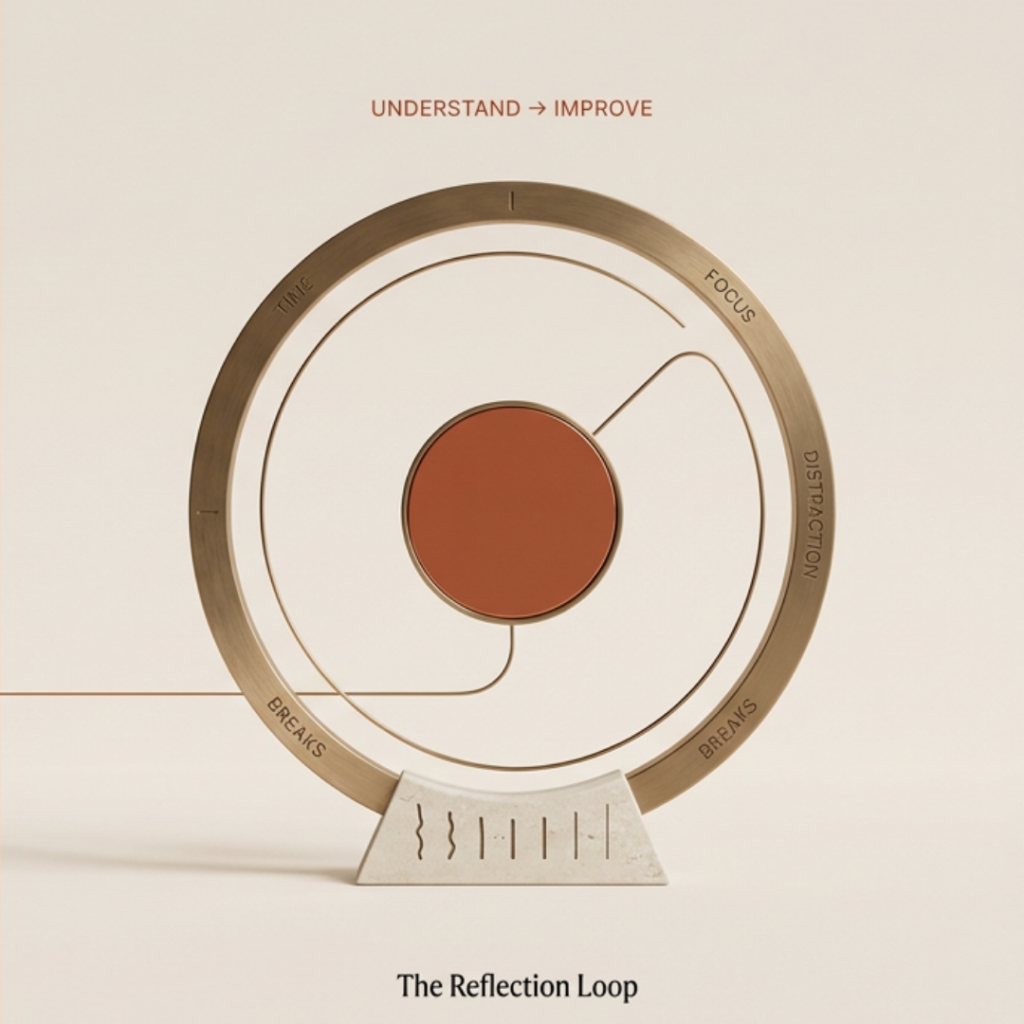
What is Focus Forge?
Focus Forge is a study tool that helps you structure your study sessions and understand how effectively you use your time.
It combines a customizable Pomodoro timer with subject- and topic-wise study tracking, break tracking, study memory, and visual analytics. You can choose a study format that suits you, record what you are studying, and track what actually happens during your study sessions and breaks.
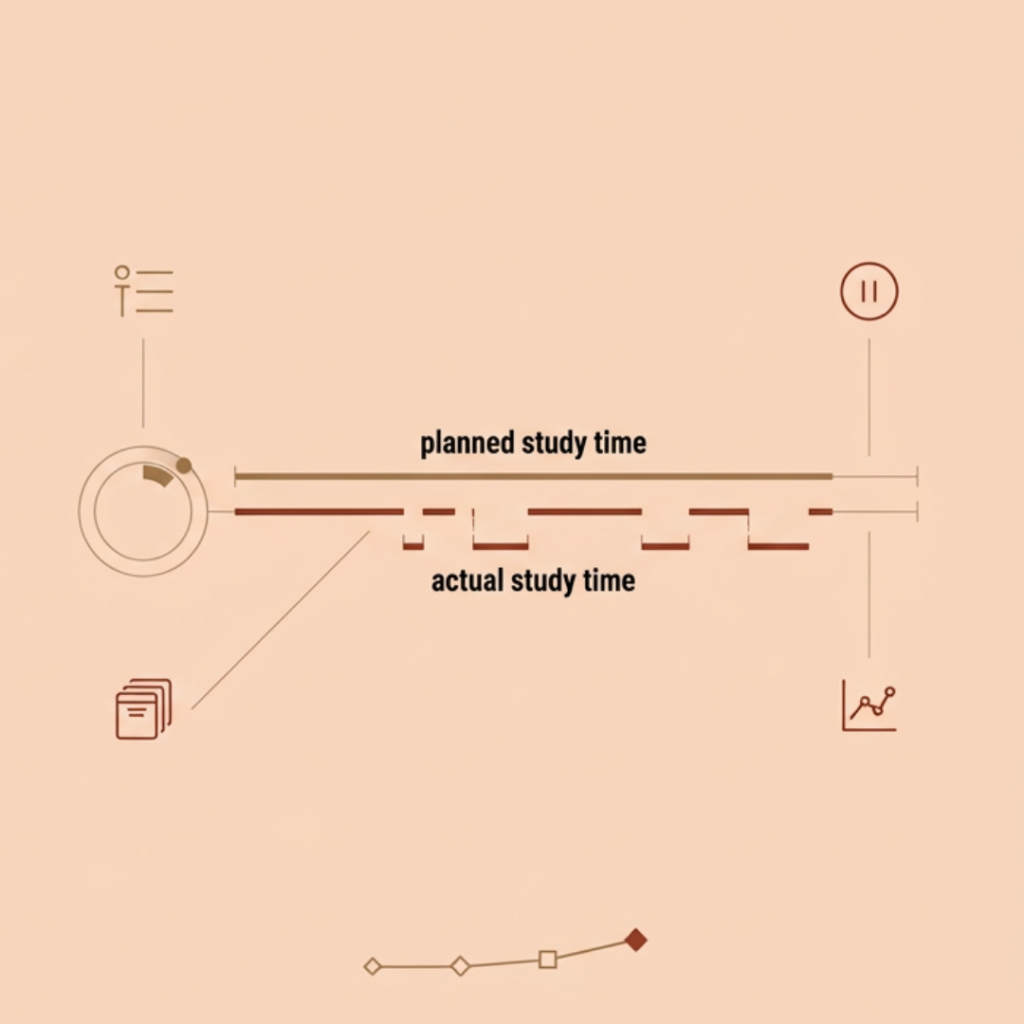
Focus Forge goes beyond simply telling you how much time you spent at your desk. It helps you identify the difference between planned study time and actual study time, while highlighting pauses, focus wastage, and breaks.
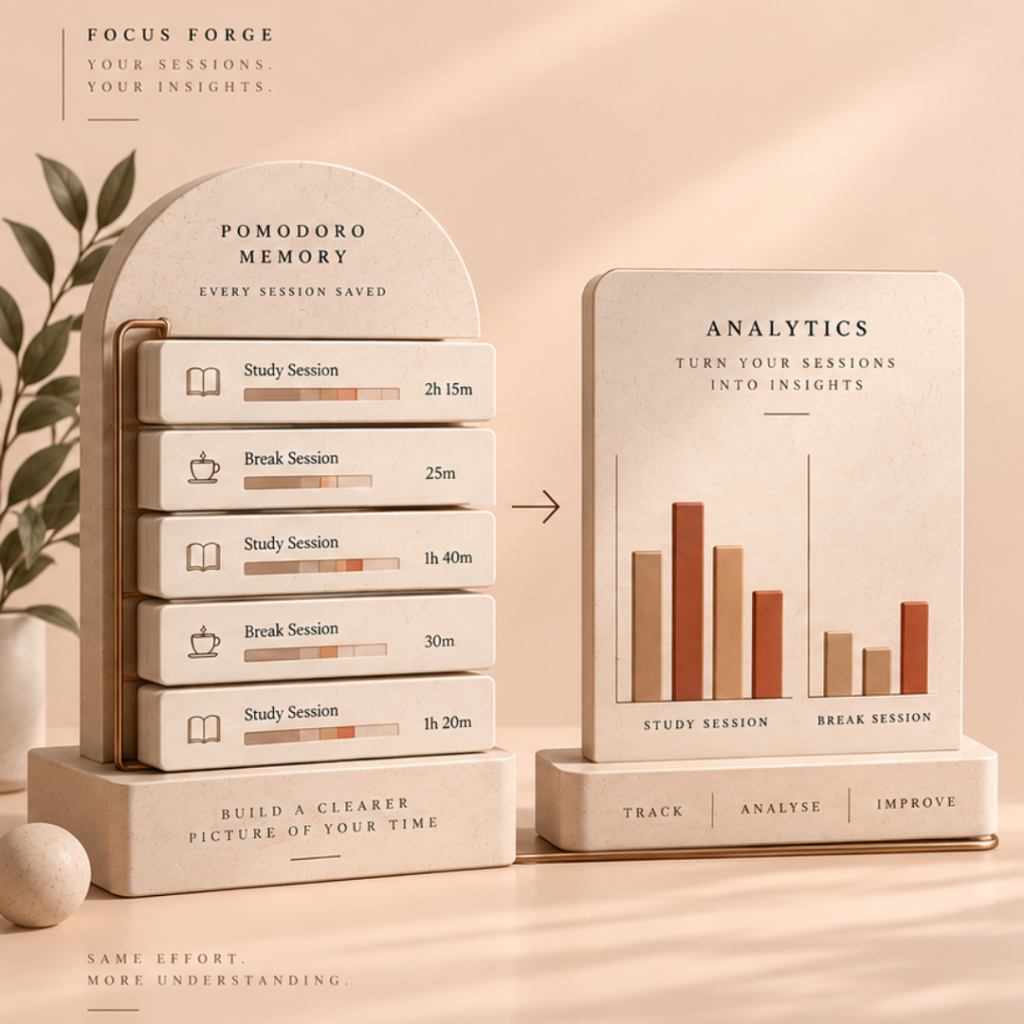
Your study and break sessions are saved in Pomodoro Memory, while Analytics turns this data into easy-to-understand charts, helping you see your study patterns and identify where your time is actually going.
The goal is simple: study with structure, build better focus habits, and turn your time into measurable progress.
How to Use Focus Forge
1. Start a Study Session
Make sure Pomodoro is selected, rather than Short Break or Long Break, and click Start.
A pop-up will appear where you can enter the subject you are going to study and the topic you plan to cover.
2. Choose Your Pomodoro Type
Select the study format that suits you:
- Baby Step — 10:5:10
- Medium — 25:5:10
- Extended — 40:10:20
- Custom — Set your own durations
Customise Your Timer
You can customise your Pomodoro and break durations according to your needs. To do this:
- Click on the Settings icon.
- Go to Timer.
- From the dropdown, select Custom.
- Set your desired durations for Pomodoro, Short Break, and Long Break.
You can also customise other aspects of your study environment, including:
- Theme
- Alarm sound
- Background music — Add background music by pasting a Spotify or YouTube link.
The format represents Pomodoro : Short Break : Long Break.
Once you have selected your preferred Pomodoro type, click Start Session.
3. Focus on your study
Study the selected topic during the Pomodoro session.
Focus Forge keeps track of your session, including your study time, pauses, and focus wastage, so you can later see how effectively you used your planned study time.
You can pause or reset the timer whenever you need to. If you pause the timer, a pop-up will appear asking you to provide the reason for the pause. You can enter the reason if you wish.
When the Pomodoro session ends after completion, a pop-up will appear asking about Focus Wastage. For example, if you feel that you were not fully focused for a certain amount of time during the session, you can enter the amount of time you were unfocused and the reason for the focus wastage.
This helps Focus Forge distinguish between the time you planned to study, the time you actually studied, and the time that was lost due to lack of focus.
4. Take your breaks
When your Pomodoro session ends, take the designated Short Break or Long Break.
Select the appropriate break, provide the reason for your break, and then click Start Break.
Try to return within the allotted time. If your break extends beyond the planned duration, you can record the reason for the extra time. You can also click Reset to end the break early.
Both actions – extending your break or ending it early – are tracked in Pomodoro Memory, helping you keep a record of how you use your break time.
5. Review Your Pomodoro Memory
Click on the Memory icon at the top right. A pop-up will appear showing your Pomodoro Memory.
Use it to look back at your previous or current-day:
Study Sessions
Break Sessions
You can filter your records and review details such as study duration, pauses, focus wastage, actual outcome, break duration, and reasons for extended breaks.
6. Analyse your progress
Go to Analytics (top-right button) to view your study and break data in bar-chart form.
At the top, select either Study Session or Break Session.
Study Session
- Select the From and To dates to choose the period you want to analyse. You can also select Today to view your data for the current day.
- Select a Subject and Topic to view specific data.
- You can also select All Subjects to view your combined study data across subjects.
Break Session
- Select the From and To dates to choose the period you want to analyse.
- You can select All to view your overall break data.
- If you want to analyse a specific type of break, you can select Short Break or Long Break.
The Analytics section helps you visually understand your study and break patterns and identify where your time is actually going.
- Study Session — Understand your study time and performance across subjects and topics.
- Break Session — Understand how you are using your short and long breaks.
Use the available filters to analyse your data in greater detail and identify patterns in your study behaviour.
7. Learn from your data
Use the information to ask yourself:
Where is my study time going?
Am I actually studying for as long as I planned?
How much time am I losing to distractions?
Are my breaks staying within their limits?
Then use those insights to improve your next study session.
In short
Choose your study format → Set your subject & topic → Study → Take controlled breaks → Track what happened → Analyse your patterns → Improve.
This positioning makes Focus Forge clearly different from your existing Pomodoro Timer: the Pomodoro Timer helps students manage their time, while Focus Forge helps them manage, track, and understand their study behaviour.
Focus Forge
What is Focus Forge?
Focus Forge is a study tool that helps you structure your study sessions and understand how effectively you use your time.
It combines a customizable Pomodoro timer with subject- and topic-wise study tracking, break tracking, study memory, and visual analytics. You can choose a study format that suits you, record what you are studying, and track what actually happens during your study sessions and breaks.
Focus Forge goes beyond simply telling you how much time you spent at your desk. It helps you identify the difference between planned study time and actual study time, while highlighting pauses, focus wastage, and breaks.
Your study and break sessions are saved in Pomodoro Memory, while Analytics turns this data into easy-to-understand charts, helping you see your study patterns and identify where your time is actually going.
The goal is simple: study with structure, build better focus habits, and turn your time into measurable progress.
Focus Forge .How to use
1. Start a Study Session
Make sure Pomodoro is selected, rather than Short Break or Long Break, and click Start.
A pop-up will appear where you can enter the subject you are going to study and the topic you plan to cover.
2. Choose Your Pomodoro Type
Select the study format that suits you:
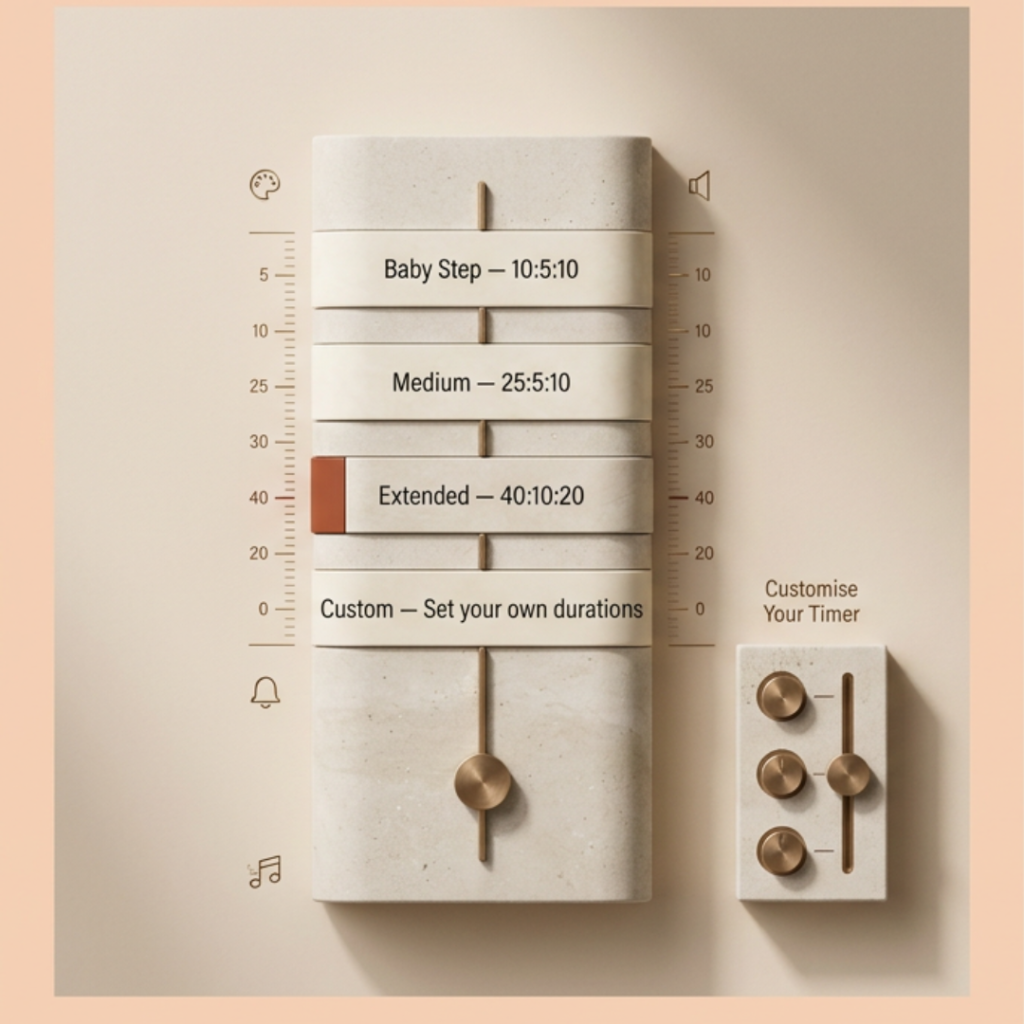
- Baby Step — 10:5:10
- Medium — 25:5:10
- Extended — 40:10:20
- Custom — Set your own durations
Customise Your Timer
You can customise your Pomodoro and break durations according to your needs. To do this:
- Click on the Settings icon.
- Go to Timer.
- From the dropdown, select Custom.
- Set your desired durations for Pomodoro, Short Break, and Long Break.
You can also customise other aspects of your study environment, including:
- Theme
- Alarm sound
- Background music — Add background music by pasting a Spotify or YouTube link.
The format represents Pomodoro : Short Break : Long Break.
Once you have selected your preferred Pomodoro type, click Start Session.
Focus Forge .How to use
3. Focus on your study
Study the selected topic during the Pomodoro session.
Focus Forge keeps track of your session, including your study time, pauses, and focus wastage, so you can later see how effectively you used your planned study time.
You can pause or reset the timer whenever you need to. If you pause the timer, a pop-up will appear asking you to provide the reason for the pause. You can enter the reason if you wish.
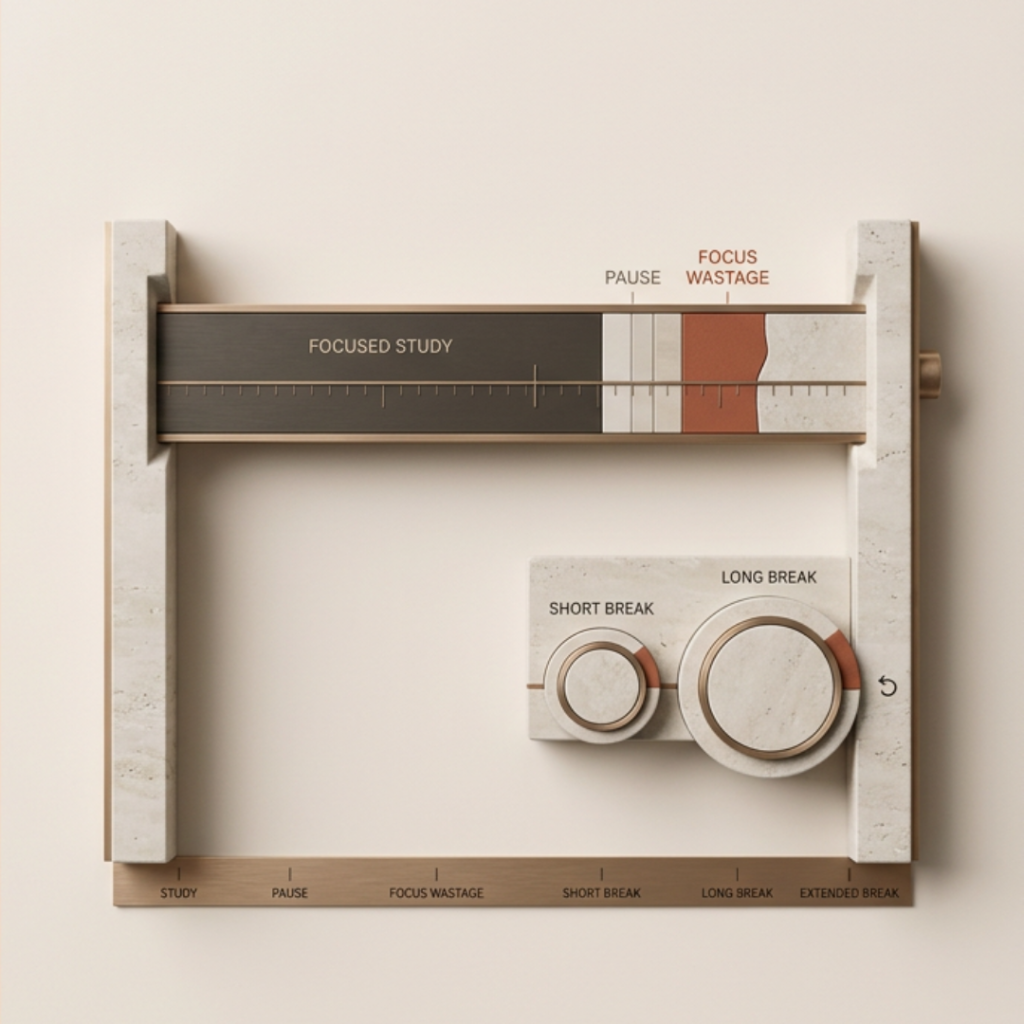
When the Pomodoro session ends after completion, a pop-up will appear asking about Focus Wastage. For example, if you feel that you were not fully focused for a certain amount of time during the session, you can enter the amount of time you were unfocused and the reason for the focus wastage.
This helps Focus Forge distinguish between the time you planned to study, the time you actually studied, and the time that was lost due to lack of focus.
4. Take your breaks
When your Pomodoro session ends, take the designated Short Break or Long Break. Select the appropriate break, provide the reason for your break, and then click Start Break.
Try to return within the allotted time. If your break extends beyond the planned duration, you can record the reason for the extra time. You can also click Reset to end the break early.
Both actions – extending your break or ending it early – are tracked in Pomodoro Memory, helping you keep a record of how you use your break time.
Focus Forge .How to use
5. Review Your Pomodoro Memory
Click on the Memory icon at the top right. A pop-up will appear showing your Pomodoro Memory.
Use it to look back at your previous or current-day:
Study Sessions
Break Sessions
You can filter your records and review details such as study duration, pauses, focus wastage, actual outcome, break duration, and reasons for extended breaks.
6. Analyse your progress
Go to Analytics (top-right button) to view your study and break data in bar-chart form.
At the top, select either Study Session or Break Session.
Study Session
- Select the From and To dates to choose the period you want to analyse. You can also select Today to view your data for the current day.
- Select a Subject and Topic to view specific data.
- You can also select All Subjects to view your combined study data across subjects.
Break Session
- Select the From and To dates to choose the period you want to analyse.
- You can select All to view your overall break data.
- If you want to analyse a specific type of break, you can select Short Break or Long Break.
The Analytics section helps you visually understand your study and break patterns and identify where your time is actually going.
- Study Session — Understand your study time and performance across subjects and topics.
- Break Session — Understand how you are using your short and long breaks.
Use the available filters to analyse your data in greater detail and identify patterns in your study behaviour.
Focus Forge .How to use
7. Learn from your data
Use the information to ask yourself:
Where is my study time going?
Am I actually studying for as long as I planned?
How much time am I losing to distractions?
Are my breaks staying within their limits?
Then use those insights to improve your next study session.
In Short
Choose your study format → Set your subject & topic → Study → Take controlled breaks → Track what happened → Analyse your patterns → Improve.
This positioning makes Focus Forge clearly different from your existing Pomodoro Timer: the Pomodoro Timer helps students manage their time, while Focus Forge helps them manage, track, and understand their study behaviour.